

Last Updated: November 10, 2026
Quick Summary
The best mobile app for field service sync is one that keeps technician devices and the office system showing the same work orders, customer records and job status, even without signal. Test offline job updates, automatic syncing after reconnection, and how conflicting edits are resolved before comparing features. A long feature list that fails on offline updates costs more time than it saves.
- A sync-capable app should push dispatch changes to devices in near real time.
- Test offline mode in real dead zones by completing a full job in airplane mode.
- Use field-level merge for most fields and manual review for high-stakes fields like price.
- Confirm whether the app uses server-assigned timestamps because device clocks can be skewed.
- Run a two-to-four week pilot with success thresholds such as 98% first-attempt sync success.
Table of Contents
- What Field Service Sync Actually Has to Do
- Offline Access and Syncing After Reconnection
- Office-to-Field Sync: Dispatch, Work Orders and Job Updates
- Sync Conflicts, Duplicate Records and Who Owns the Data
- Comparing the Best Mobile Apps for Field Service Sync
- Android Support, Cost and Free Options
- Running a Sync Pilot Before You Commit to a Rollout
- Frequently Asked Questions
What Field Service Sync Actually Has to Do
A mobile app for field service sync has one job: keep the technician's phone and the office's system showing the same work orders, customer records and job status at all times.
Sync is the part of a field service app most product pages skip.
Evaluate every candidate against those four requirements before comparing features. A long feature list that fails on offline updates costs more time than it saves.
Offline Access and Syncing After Reconnection
Offline mode is the first thing to test. Technicians work in crawl spaces, mechanical rooms, thick-walled buildings and rural routes, and an app that needs a live connection will fail on exactly the calls where dispatch most needs accurate information.
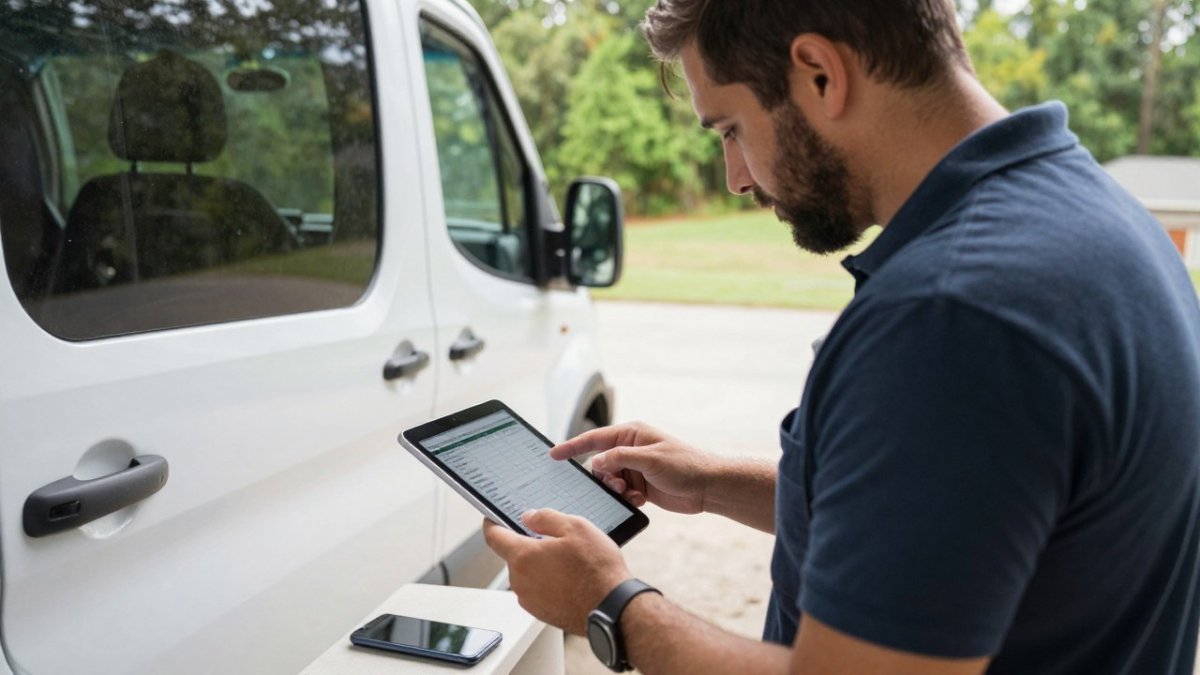
Ask each vendor three questions: can a technician open the job list and customer details with no signal? Can they complete a checklist, add photos and capture a signature offline? And when the connection returns, does the app sync automatically or does the technician have to press a button and hope?
Don't treat "offline mode" as a yes-or-no feature. Some apps cache only the current day's jobs; others store the full schedule but cannot save new photos. Read the offline documentation, not just the marketing page.
Check any vendor's offline behavior against your own service area during a trial rather than relying on a product description alone. For a closer look at how LightserveCRM's offline mode works, how to set it up, and how failed syncs are fixed, see offline mode and syncing.
Testing Offline Mode in Dead Zones
Run the test in the places where your technicians actually lose signal.
Check four things: did the job data load before signal loss, did notes and photos save, did the office see the update within a few minutes of reconnection, and did any change get duplicated or lost?
Repeat the test with two technicians editing the same customer record. This exposes sync conflicts early, far cheaper to fix during a trial than after rollout.
Office-to-Field Sync: Dispatch, Work Orders and Job Updates
Sync runs both ways, and the office-to-field direction is where dispatchers feel the pain.
Test reassignment: if a job moves to another technician, does the original technician's app remove it immediately? To see how dispatch assigns service calls and reroutes jobs live, review the full workflow.
Check job updates too. When a technician marks a job complete, the invoice and customer record should reflect that status without manual re-entry.
Dispatch features vary widely: some assign jobs by skill and location, others rely on manual matching. Decide which model your team needs before you look at pricing.
Sync Conflicts, Duplicate Records and Who Owns the Data
Conflicts happen when two people change the same record while offline or at nearly the same time, a technician adds a note while the office updates the billing address, and without a clear rule one change silently replaces the other. Most ranking articles stop at "the app resolves conflicts," which is not enough to configure or defend a system. Specify the mechanics in a vendor questionnaire and test them during a trial.
The four conflict-resolution models you will encounter
Ask each vendor which model the app uses, and whether you can change it per record type. The common patterns are:
- Last-write-wins (LWW). The most recent timestamp overwrites earlier edits. Simple and fast, but it silently discards the earlier change. Acceptable for low-stakes fields such as a technician's free-text note, dangerous for invoice amounts, service dates, and compliance fields.
- Field-level merge. The app compares changes field by field and keeps non-overlapping edits from both sides. If the technician changed the note and the office changed the billing address, both survive. If both changed the same field, the app falls back to another rule. The safest default for customer and work-order records.
- Record-level lock or checkout. The first person to open a record for editing holds a lock until they save or release it. Prevents conflicts entirely but frustrates technicians who lose signal mid-edit. Locks need a timeout so a lost device does not freeze a record forever.
A practical configuration is a hybrid: field-level merge for most fields, manual review for a short list of high-stakes fields (price, bill-to address, service completion timestamp, safety checklist results), and LWW only for free-text notes where losing an edit is tolerable.
Timestamps, clocks, and the source-of-truth decision
Conflict rules depend on timestamps, and timestamps depend on device clocks, a phone set two hours fast makes every offline edit look newer than it is. Confirm the app stamps edits with a server-assigned time on sync, or records both device time and server receipt time.
Decide the source of truth per record type before rollout, and write it down:
- Customer master data (name, billing address, tax ID): office system is authoritative. Field edits should be submitted as change requests, not direct overwrites.
- Work-order status and completion data: field device is authoritative once the technician marks the job complete, because the technician is the only person who saw the work.
- Asset and equipment history: merge both sides, because the office may add warranty data while the technician records a repair.
Watch out: if the vendor cannot tell you which side wins for a given field, assume last-write-wins and plan manual reconciliation for anything that affects billing.
Duplicate records: prevention beats cleanup
A customer entered once in the field and again in the office can split a service history in two, and merging later is painful. Ask how the app prevents duplicates at creation:
- Does it search existing customers by phone, address, and email before allowing a new record?
- Does it normalize addresses and phone numbers before matching?
- Can a technician request a new customer from the field, with the office approving and assigning the canonical record?
A common pattern is letting technicians create a provisional customer record tied to the job, then having the office merge it into the master record within a day, keeping the technician moving without polluting the customer database.
Data ownership, residency, and access
Data ownership matters most if you handle sensitive customer information or need to control where data lives. LightserveCRM offers both cloud-hosted and self-hosted deployment, so you can choose the model that fits your security requirements. Your server, your database, your customers: it runs a Rust API, a SvelteKit workspace and PostgreSQL, one company per install.
If your company needs to move from an existing system, plan the data mapping, cleansing and cutover before you start. Our self-hosted CRM migration checklist for field service teams walks through each step so records do not get lost in the move.
Comparing the Best Mobile Apps for Field Service Sync
Several well-known platforms appear in field service software comparisons. Pricing and sync details change often, so verify both on each vendor's site before you decide.
| App | Reported Starting Price | Sync Details Reported | Best For |
|---|---|---|---|
| LightserveCRM | Free trial available | Offline support for field work; self-hosted option | Teams needing control over data and deployment |
| Jobber | $29/month | Not specified in supplied results | Small businesses wanting a published entry price |
| Microsoft Dynamics 365 Field Service | Contact for pricing | Not described in supplied results | Organizations already on the Microsoft stack |
| Connecteam | Contact for pricing | Phone clock-in and clock-out noted | Teams focused on mobile time tracking |
| RazorSync | Contact for pricing | Not specified in supplied results | Businesses wanting scheduling through payments |
| Service Fusion | $208/month | Not described in supplied results | Companies comparing published starting prices |
| Kickserv | $60/month | Not described in supplied results | Smaller teams comparing entry-level pricing |
| eLogii | Contact for pricing | Not specified in supplied results | Teams comparing mobile apps and management platforms |
Whatever the shortlist, run the same offline and conflict tests on each candidate. Feature tables reveal what a vendor claims. A trial reveals what your technicians will experience.
Reported starting prices of field service apps
Android Support, Cost and Free Options
If your technicians use Android phones, confirm the app's Android version before you commit.
Cost is more than the subscription.
Pricing depends on the number of users, the modules you need and the deployment option, so request a quote for your team size rather than comparing starting prices alone.
Free options exist, but they usually limit users, storage or offline functions.
Running a Sync Pilot Before You Commit to a Rollout
A short pilot will show you more than any comparison article, but only if you instrument it. "It seemed to work" is not evidence. The plan below gives you specific metrics, a diagnostic procedure, and go/no-go thresholds you can defend to operations and finance.
Pilot design
Pick two or three technicians who work in your weakest-coverage areas and one dispatcher. Run the pilot for two to four weeks, long enough to cover a full billing cycle and at least one stretch of bad weather or heavy call volume. Keep a control group on the current process so you can compare manual re-entry time and dispatch phone calls.
Before day one, agree on the data you will collect. Most field service teams track the following:
- Sync latency: time from the technician pressing save or completing a job to the office system reflecting the change. Measure it after reconnection, not just on Wi-Fi.
- First-attempt sync success rate: share of job completions that sync without a retry, a manual push, or a support call.
- Failed-sync rate: share of sync attempts that error out, by device model, OS version, and location type.
Instrumenting the pilot
You do not need a data platform. A shared spreadsheet with one row per job completion works if the columns are consistent: job ID, technician, device, OS version, location type, connectivity at completion, time of completion, time the office saw the update, retry count, and any error message.
For failed syncs, capture a screenshot of the error and the app's sync status screen. Ask the vendor for access to sync logs or a diagnostic screen during the pilot; if they cannot provide one, that is itself a finding.
Diagnostic procedure for failed or delayed syncs
When a sync fails or lags, work through the following in order. The goal is to separate coverage problems from configuration problems from app defects.
- Confirm the device actually has connectivity. Toggle airplane mode, check signal strength, and try a known-good request such as loading a web page. A sync failure on a device with no bars is a coverage issue, not an app issue.
- Check the app's sync status indicator. Does it show pending, syncing, or error? Note the exact state and any error code.
- Force a manual sync if the app allows it. If a manual sync succeeds where automatic sync failed, the problem is in the trigger or schedule, not the transport.
- Compare device time to server time. A skewed clock can cause the server to reject or reorder edits.
- Check attachment size. Large photos and PDFs often fail on weak cellular connections while text records sync fine. Test with a small text-only update to isolate the cause.
- Reproduce on a second device. If the same job syncs from another phone, the issue is device-specific (OS version, storage, permissions). If it fails everywhere, it is configuration or server-side.
- Escalate with evidence. Send the vendor the job ID, device model, OS version, timestamps, error screenshot, and sync log excerpt. Vague reports get vague answers.
Watch out: a sync that "works" on office Wi-Fi but fails in the field is the most common false positive in a pilot. Run at least half your test jobs on cellular only.
Go/no-go thresholds
Set thresholds in advance so the decision is not a debate after the fact. Reasonable starting points, adjusted for your operation:
- First-attempt sync success rate at or above 98% for job completions.
- Sync latency under five minutes for 95% of completions after reconnection.
- Failed-sync rate under 1% of attempts, with no unresolved failures older than 24 hours.
If sync fails in more than a small share of field completions, or if conflicts require daily manual cleanup, the app is not ready for your operation. If the pilot runs cleanly, you have evidence to support the rollout, and a baseline to compare against after rollout, when volume and network conditions change.
Start your evaluation with a LightserveCRM trial, run the offline and conflict tests described above, and compare the results against the other candidates on your list.
Frequently Asked Questions
Can field service mobile apps work offline?
Many can, but offline support varies a lot between products. Look for an app that stores job details, customer records, forms and photos on the device, lets technicians complete work without a connection, and queues those changes to upload automatically when service returns. Test this in the buildings and rural areas where your crews actually lose signal, not just in the office. Confirm whether the app shows a clear sync status so technicians know what has and has not reached the office.
How do field service apps sync data between technicians and the office?
Most apps push schedule and work order changes from the office dashboard to the technician's phone, then send completed tasks, notes, photos and signatures back. The timing depends on the connection and the sync method. Ask vendors how often data syncs, what happens when two people edit the same job, and whether dispatchers see updates in near real time. Those answers matter more than a feature checklist.
What should a field service app sync with?
At minimum, a field service app should sync with your customer records, job schedule, work orders, service history and parts or inventory data. If you invoice or collect payments, it should also connect to your accounting or payment process so completed jobs do not need re-entry. Check which integrations are native and which require a third-party connector, since connectors add cost and another point of failure.
Is there a free mobile app for field service sync?
Some vendors offer free trials or limited free tiers, but a permanent free option with full sync, offline access and job management is uncommon. A free trial is still useful for testing sync under real conditions with a few technicians. LightserveCRM offers a free trial you can use to evaluate the product before you decide. Confirm the trial includes the features you plan to use.
